
Task states
Recognizing the states
Section titled “Recognizing the states”Every task in the calendar is in one of six states. The state tells you whether the task’s time is still open, fixed, or already done — and what you can still change about it.
annos markers once the capture exists.Suggestion
Section titled “Suggestion”An upcoming visit of a recurring task has been placed automatically, but the workday has not yet been scheduled. The task’s occurrence time is not confirmed, because the day as a whole has not yet been optimized.
automatic placement, unconfirmed, tentativeConfirmed
Section titled “Confirmed”The task and its schedule have been confirmed. Confirmed tasks are no longer modified if the task’s repeat rule changes, because they have been created as independent events.
fixed, independent event, confirmed timeCompleted
Section titled “Completed”The task has been marked as done in the Day view. A completed task can no longer be edited.
done, finished, marked doneLocked
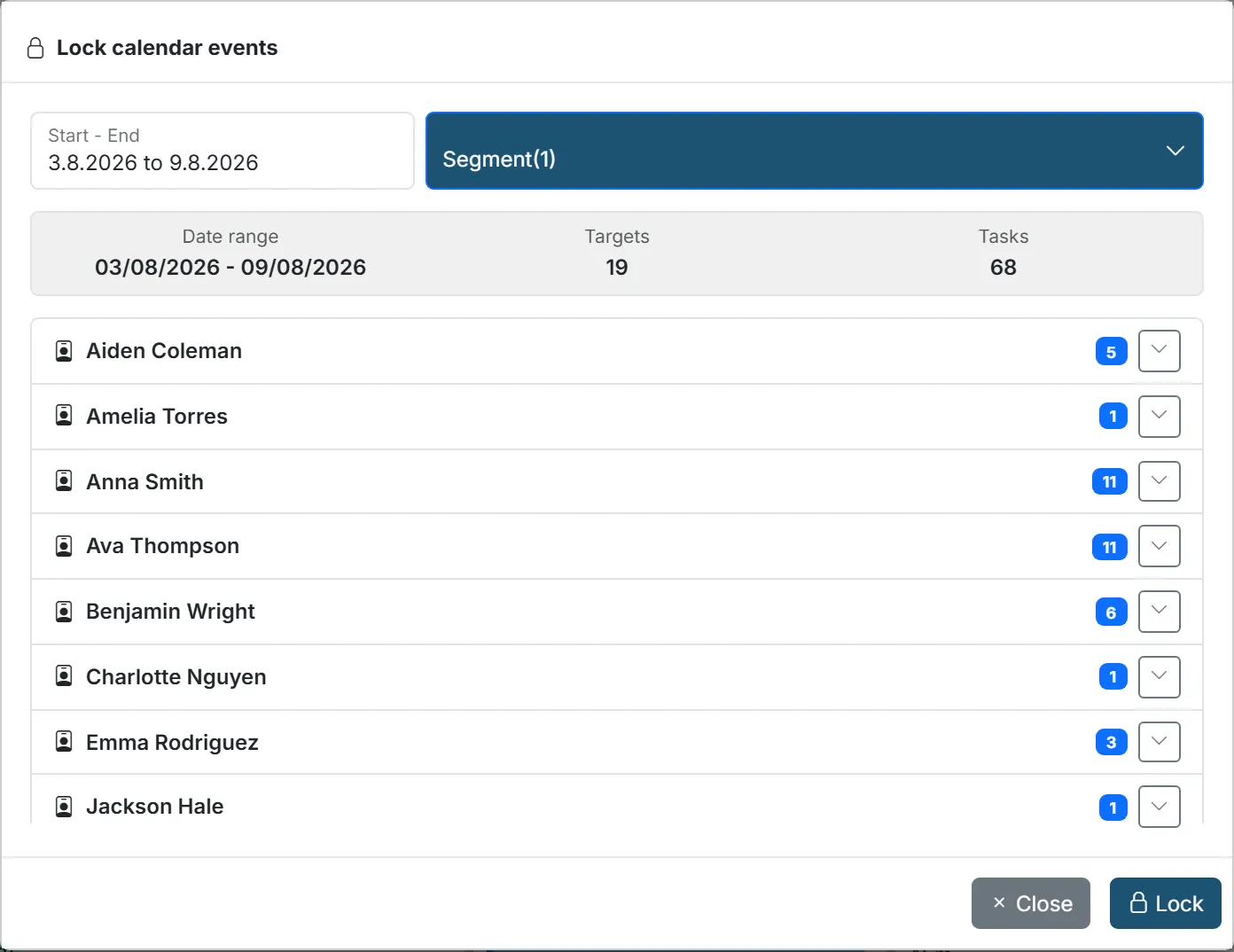
Section titled “Locked”The task is locked and cannot be moved manually or through scheduling. An individual task can be locked from the task’s details or with the Lock entries action in the top-right calendar actions (and unlocked again with Unlock entries). Several tasks can also be locked at once: in the Lock calendar events dialog, choose a Segment of the calendar and lock every task in the selection.
Bulk lock only locks tasks that match the whole selection — the date range, the chosen workers, and the chosen Segment — and that are in a lockable state at that moment: an unlocked, non-suggestion, non-completed task (locking) or a locked task (unlocking) — excluding breaks, absences, and appointments either way. Anything else in the selection (still a suggestion, already completed, canceled, already in the target lock state, or a break/absence/appointment) is skipped, and the dialog reports it as such (“N calendar events will be skipped.”).
The dialog shows a live count of matching tasks next to Tasks; at zero, the Lock button is disabled — that means nothing in the selection needs locking, not an error.
If a task you expected to lock stayed unlocked, check its state and that it actually carries the identifier and Segment you filtered by.
Scheduling never moves a locked task, so a task locked before the day is optimized freezes the day around it and can leave waiting time between tasks. Lock tasks only after the day has been optimized — see Scheduling best practices.
In preview
Section titled “In preview”The task is part of a scheduling run that is in the suggestion state and has not yet been published. When the schedule is published, the task moves to the confirmed state. See Scheduling a week step by step.
suggestion run, unpublished, draft scheduleReschedulable
Section titled “Reschedulable”The task has been moved — for example because of an absence — from the calendar back to the task list, from where it can be rescheduled or deleted. You can recognize this state by the small red icon in the top-left corner. These tasks are placed at the top of the task list. If you no longer want to schedule the task, it can be deleted.
A reschedulable task keeps its original date, so re-running scheduling offers it back to the day it came from.