
Changing a task's repeat rule
A task’s repeat rule is changed when, for example, its interval or assignee needs to be changed. The rule and the other task functions live on the task card.
Changing the repeat rule
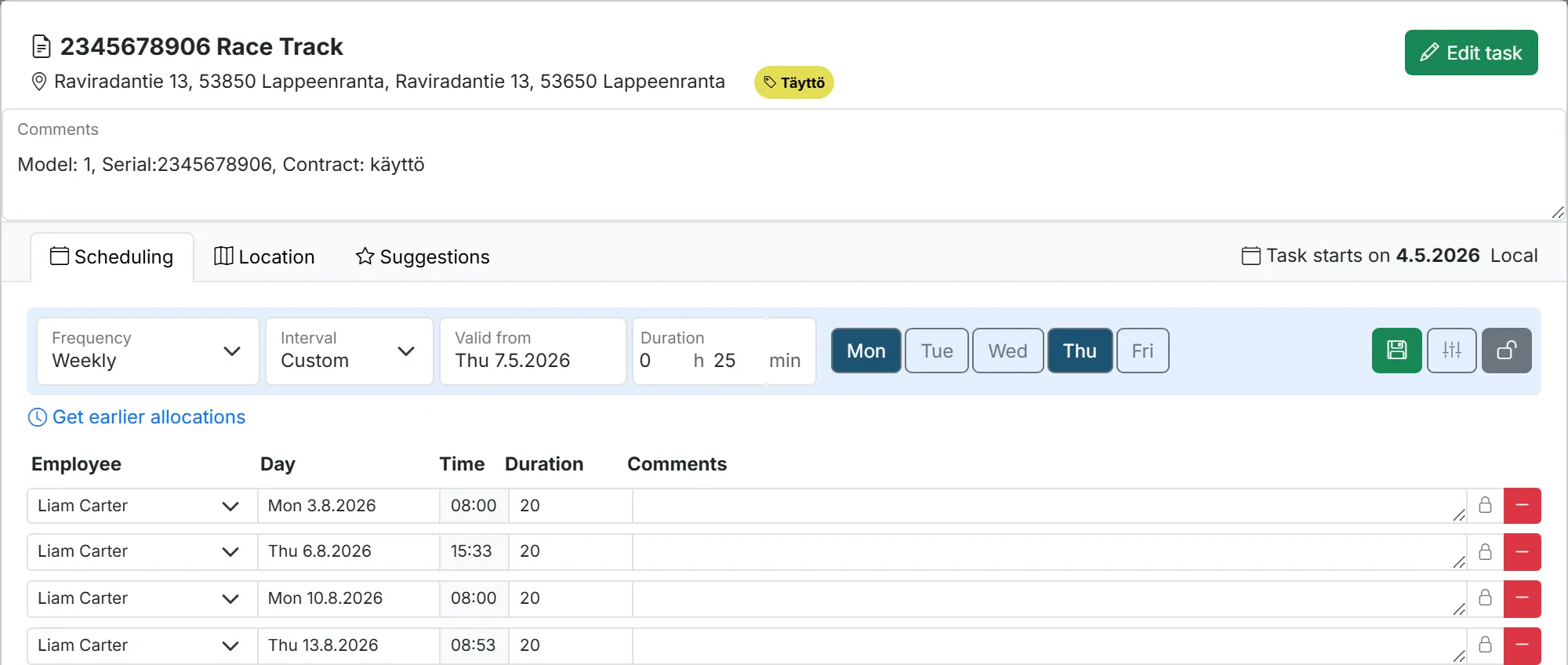
Section titled “Changing the repeat rule”- Open the task from the task list or the calendar.
- At the top of the task card, on a blue background, the current repeat rule is shown. Open the rule for editing by clicking the lock icon.
- Make your changes and check from the card’s list of upcoming occurrences that the task repeats correctly.
- Also edit the start date so that suggestions repeat starting from the day you want.
- Click the save button, which has turned green.
 12
12When the repeat rule can’t be added
Section titled “When the repeat rule can’t be added”If the rule cannot be added to the start date you chose, a red message appears at the top of the repeat panel and names the reason. Close it with its ×, or just change the rule and save again. There are six reasons:
- No work shift — the selected worker has no shift on that day. Check the worker’s work shifts.
- Public holiday — the day is a public holiday. Whether those are worked at all is an organization-wide setting.
- Worker absent — the selected worker has an absence covering the day.
- Not enough working time — the worker’s day is too full for the task’s duration. Free up time on the day, or start the repeat later.
- Conflicts with a locked task — the time collides with a locked task, which scheduling will never move. Unlock or move that task first.
- Scheduling is in progress — a scheduling run is holding the calendar. This one passes on its own; wait a moment and save again.
The first five are about the start date, so the usual fix is to pick a different start date or a different worker. Check the card’s list of upcoming occurrences afterwards to confirm the task now repeats the way you intended.
error, cannot add repeat, rejected, no shift, public holiday, absent, not enough working time, locked task, scheduling in progressReschedulable tasks on the card
Section titled “Reschedulable tasks on the card”Reschedulable tasks are shown here per task. You can assign them manually to a worker if you wish, or delete them, in which case they are also removed from the tasks to be scheduled.
assign manually, delete returned taskExtra repeat
Section titled “Extra repeat”An extra repeat can be added for a desired day and worker. This task is not counted as part of the scheduling, i.e. it is a separate occurrence.
extra occurrence, one-off additionRemove rule
Section titled “Remove rule”Removes the repeat rule and the suggestions from the task in question. Confirmed tasks remain in the calendar.
remove recurrence, keep confirmed