
Importing tasks from CSV
Single tasks can be imported in bulk from a CSV file, in the Tasks view’s Import tab (next to All). The import runs in two steps: you upload the file, then review what Allocator read from it and create the tasks.
Importing a CSV file
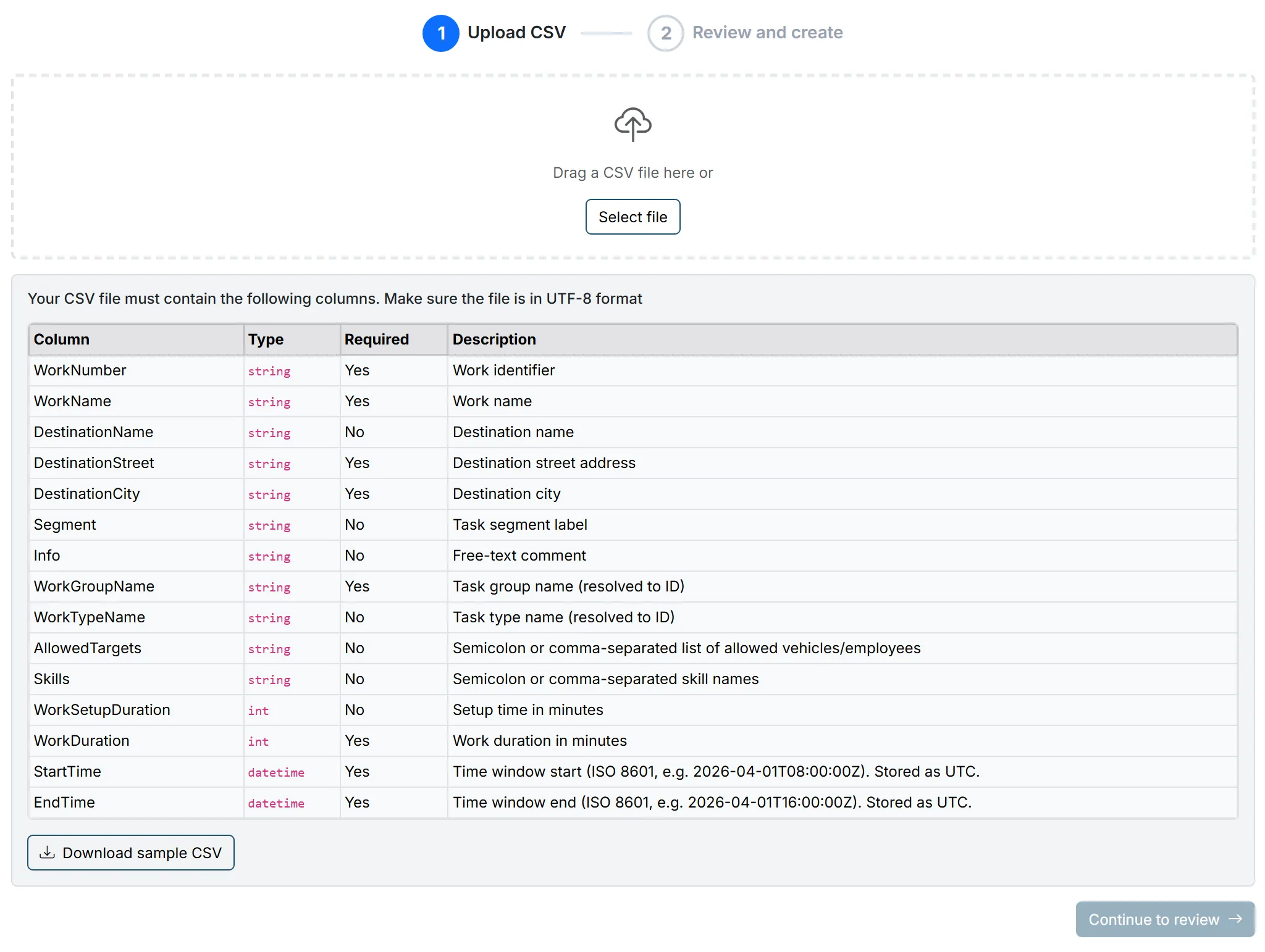
Section titled “Importing a CSV file”- Open the Tasks view and switch to the Import tab. The first step, Upload CSV, lists every column your Allocator expects and what each one is for.
- Optional, but the easiest start: click Download sample CSV. The file has the right columns, and its example rows are filled in with your own organization’s Location, task type, allowed targets and skills — the names that have to match. Use it as a template.
- Fill in your tasks, one per row, and save the file as CSV in UTF-8 — see what the file must look like.
- Drag the file onto the upload area, or choose it with Select file.
- Click Continue to review. Allocator reads the file and moves to the Review and create step.
- Check the row count and the column mapping, then click Create tasks and confirm. The button stays disabled until there are no validation errors left.
What the file must look like
Section titled “What the file must look like”- A CSV file, not a spreadsheet. Only
.csvfiles are accepted, at most 5 MB. A CSV file holds one sheet, so a workbook with several sheets has to be saved as one CSV per sheet and imported separately. - UTF-8 encoding — in Excel, the CSV UTF-8 (Comma delimited) file type. Any other encoding garbles ä, ö and å.
- The first row is the header; every row after it is one task.
- Comma or semicolon as the separator. Allocator detects which one the file uses, so a file saved with a semicolon works as it is.
- Column names are matched loosely. Case, spaces, underscores and hyphens
are ignored, so
WorkNumber,work numberandwork_numberall mean the same column, and the order of the columns does not matter. Two columns that reduce to the same name are an error — remove one of them. - Numbers use a decimal point (
1.5, not1,5), and durations are whole minutes. - Line breaks inside a value are replaced with spaces, except in Info, which keeps them.
Which columns are required
Section titled “Which columns are required”The Upload CSV step lists every column your Allocator accepts, with its type, whether it is required, and a short description. That table is the authority — which columns exist depends on the features your organization has enabled.
Always required:
- WorkNumber — the task’s identifier.
- WorkName — the task’s name.
- DestinationStreet and DestinationCity — the address where the work is done.
- WorkGroupName — the Location the task belongs to.
- WorkDuration — the work duration in minutes.
- StartTime and EndTime — the task’s time window.
Optional: DestinationName (the customer or site name), Segment (a free-text label), Info (a free comment), WorkTypeName, AllowedTargets, Skills, and WorkSetupDuration (the task’s parking time in minutes).
Leaving an optional column out, or empty on some rows, is fine. An empty required column is reported as Required field is empty.
required, mandatory, optional, empty fields, columns, schema, worknumber, workname, workduration, destinationstreetColumn mapping
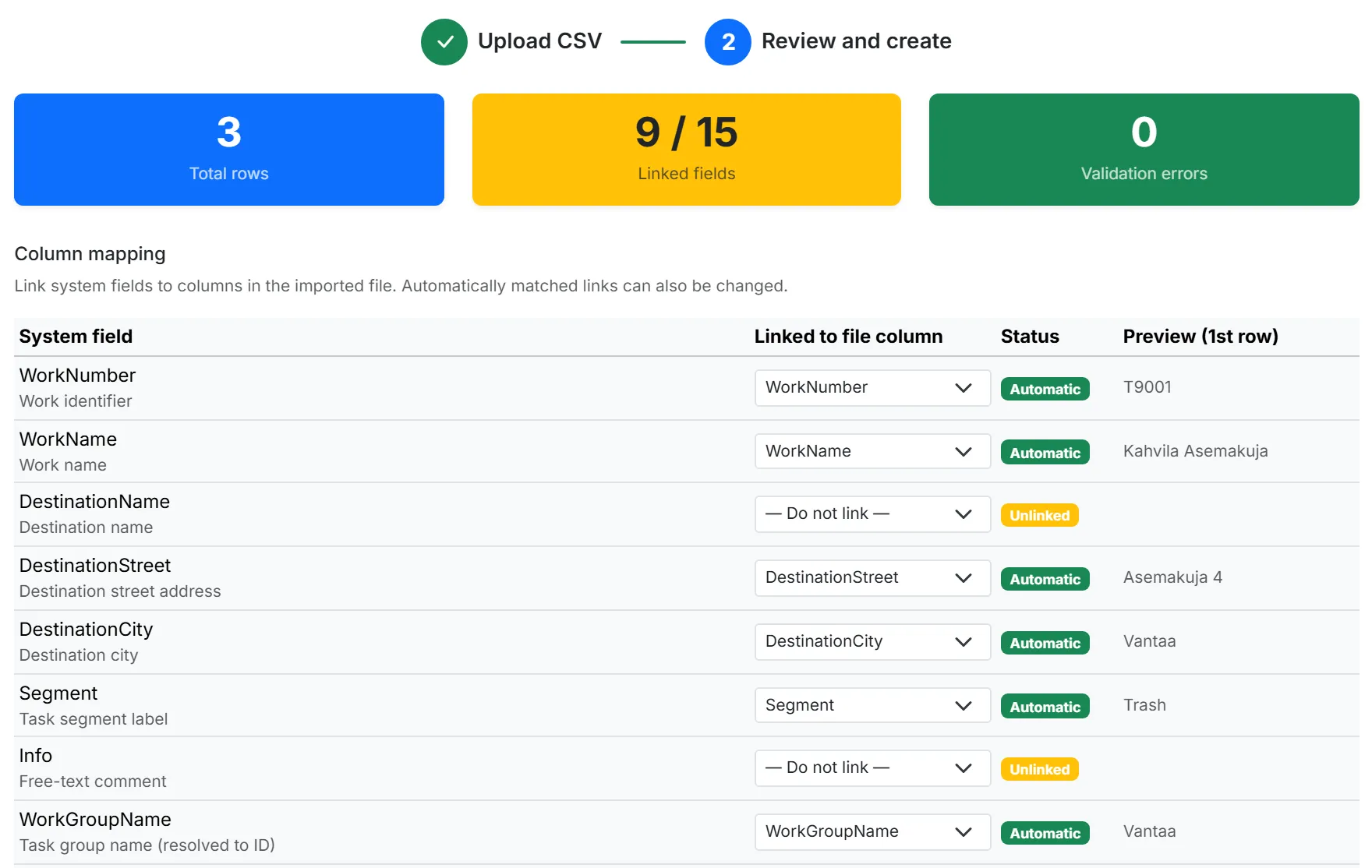
Section titled “Column mapping”The Review and create step opens with three counts — Total rows, Linked fields and Validation errors — and below them the Column mapping table: one row per field Allocator expects, showing which column of your file it was linked to, the link’s Status, and a Preview (1st row) of the value it picked up.
Columns whose names matched are linked for you and marked Automatic. A field left Unlinked found no matching column: choose the right column from its dropdown and the status becomes Manual. — Do not link — ignores a field on purpose. Every change re-runs the validation.
This is the quickest fix when your own column names differ from Allocator’s — link them here instead of renaming them and saving the file again.
How named fields are matched
Section titled “How named fields are matched”Four columns refer to things by name, and Allocator resolves each against what already exists — the import never creates them:
- WorkGroupName → a Location
- WorkTypeName → a task type
- AllowedTargets → workers or vehicles
- Skills → a skill
Add anything missing in Allocator before importing, or the row fails with Work group ‘X’ not found, Work type ‘X’ not found, Allocation target ‘X’ not found or Skill ‘X’ not found. Capitalization does not matter; the spelling has to match otherwise. The sample CSV comes filled in with names taken from your own Allocator, which is the simplest way to get them right.
AllowedTargets and Skills each take a list. Separate the names with
semicolons (Worker A;Worker B) — commas also work, but they have to be quoted
in a comma-separated file, so semicolons are the safer choice.
The CSV column is named WorkGroupName regardless of what your organization
calls Locations in the interface.
StartTime and EndTime
Section titled “StartTime and EndTime”StartTime and EndTime define the task’s time window — the span within which the task is carried out, not the execution time itself. A wide window leaves more room for the optimization.
Write both as YYYY-MM-DDTHH:MM:SS:
StartTime,EndTime2026-07-02T08:00:00,2026-07-02T16:00:00A time written like that is read as local Finnish time, daylight saving
included, so there is nothing to convert by hand. To be explicit instead, add a
time zone: a Z suffix means UTC — during summer time 2026-07-02T05:00:00Z is
the same 08:00 as above — and an offset such as +03:00 works too. The sample
CSV uses the Z form.
A value Allocator cannot read is reported as Value ’…’ is not a valid datetime (ISO 8601).
starttime, endtime, execution time, window, time zone, utc, iso 8601, z suffix, daylight savingDelivery and pickup columns
Section titled “Delivery and pickup columns”When your organization transports goods, the import accepts extra columns alongside the ones above — the Upload CSV step’s table shows which:
- DeliveryQuantity — the load to be delivered.
- TwoWayDelivery —
trueor1marks the task as a pickup and return instead of a one-way trip. - ReturnDeliveryQuantity — the quantity carried back; fill it in when
TwoWayDelivery is
true. On a one-way task it is the pickup quantity. - PickupDuration — the minutes needed at the pickup address.
- PickupStreet and PickupCity — where the goods are collected. These two are required on every row once pickups are in use.
Quantities take a decimal point (12.5).
Delivery and pickup columns
Transport onlyExtra columns for delivery quantities and pickup addresses.Fixing validation errors
Section titled “Fixing validation errors”Everything Allocator cannot accept is listed under Validation errors with the Row, the Field and a Message. Create tasks stays disabled until the list is empty; once it is, the step reports No validation errors. All rows are ready for import. Row numbers count data rows, so row 1 is the first task, not the header.
The messages you are most likely to see:
- Required field is empty — a required column has no value on that row.
- Value ’…’ is not a valid integer / decimal number / datetime (ISO 8601) — the value is the wrong shape for its column. A decimal comma instead of a point is the usual cause.
- Work group ‘X’ not found, and the other name lookups — the name does not exist in Allocator yet.
- Duplicate CSV columns map to the same field — two of your columns reduce to the same name.
Two problems are reported before the review step instead: a file over 5 MB (File is too large. Maximum size is 5 MB.) and a file that cannot be read at all (Failed to parse CSV file.).
Correct the errors in your source file and import it again. A column that was merely linked to the wrong field can be re-linked without leaving the page. If some rows still fail at the last step, the result reports how many tasks were created and how many failed, so you can re-import just the remainder.
validation errors, error list, required field is empty, not valid, duplicate columns, file too large, parse error, fix errors, partial import