
Worker's day
The calendar is made up of worker-specific schedules, and things related to a worker’s workday can be conveniently edited right in the calendar view. Some functionality, such as adding long-term absences, is found in work shift management.
Changing working time
Section titled “Changing working time”The calendar shows the working time for an individual day. If needed, you can change it by clicking it. This change is day-specific and creates an exception schedule for that day; it does not affect future workdays.
Changing working time for a longer period is done in the worker’s work shift management, which you can reach by clicking the worker’s name in the calendar.
Closing a day entirely: set the day’s working time to 00:00–00:00, or add a one-day absence. Do not use 00:00–23:59 — that makes the worker available around the clock. If the need is recurring, edit the work shift instead.
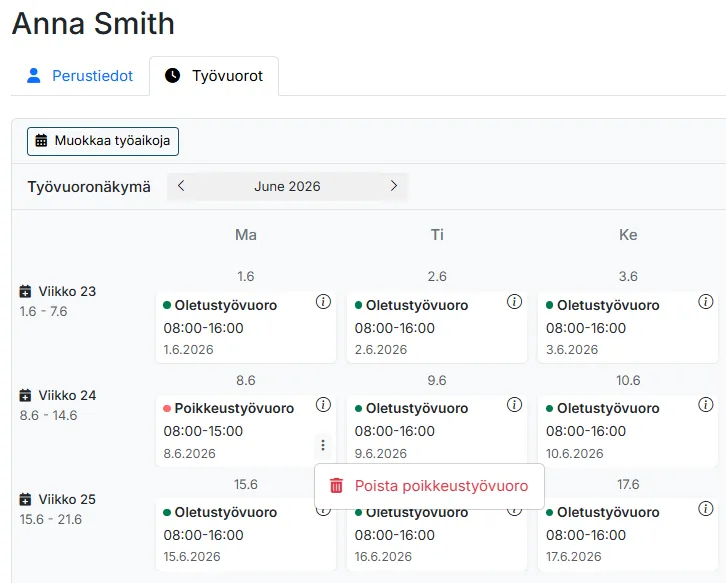
A day that differs from the regular shift is shown as an exception day (an exception shift is created for it). To remove the exception and restore the regular working time, click the three dots (⋮) on that day and choose Remove exception. The menu is only available on exception days.
Adding an appointment (other task)
Section titled “Adding an appointment (other task)”When you hover the mouse over the day’s working time, a plus icon appears next to it. Use it to add an Appointment (other task) — for example a weekly team meeting or a warehouse visit. You can define the time, the address, the workers whose calendars receive the entry, and the recurrence.
Allocator marks the task as locked in that spot and does not move its time. See also Task types for how appointments compare with recurring tasks.
The same plus icon is also used to add a one-day absence — see Absences.
other task, team meeting, warehouse visit, plus icon, recurring slot